How to use ProfileToWeb: a step-by-step guide
Build your website from your Google Business Profile, then a tour of every screen in the app: design, enquiries, results, search, domain and plan.

For business owners. You need a Google Business Profile and the Google account that manages it. No technical knowledge needed.
ProfileToWeb turns your Google Business Profile into a website: your name, category, address, hours, services, photos and reviews. You see the finished site first, then change what you like. A free website lives on a profiletoweb.com address and stays free for as long as you like.
This guide has two parts. Part 1 gets your website built. Part 2 is a tour of every screen in the app and what it is for.
Part 1. Build your website
Step 1. Sign in
Go to profiletoweb.com and choose Start free. If you already have an account, choose Sign in.
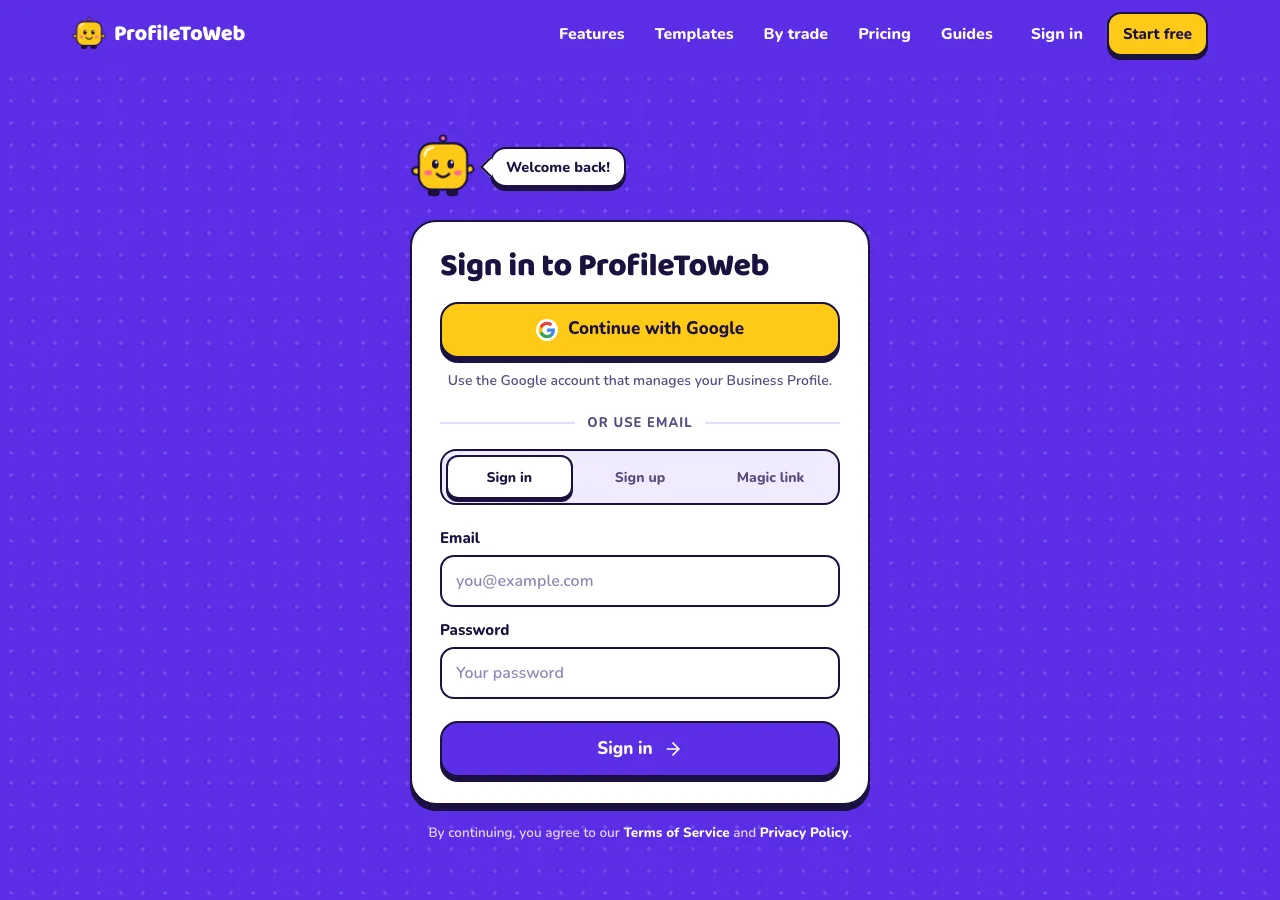
Choose Continue with Google and use the Google account that manages your business. You can also sign in with an email and password, or a magic link sent to your email.
Step 2. Connect your Google listing
Choose Continue with Google on the first screen.
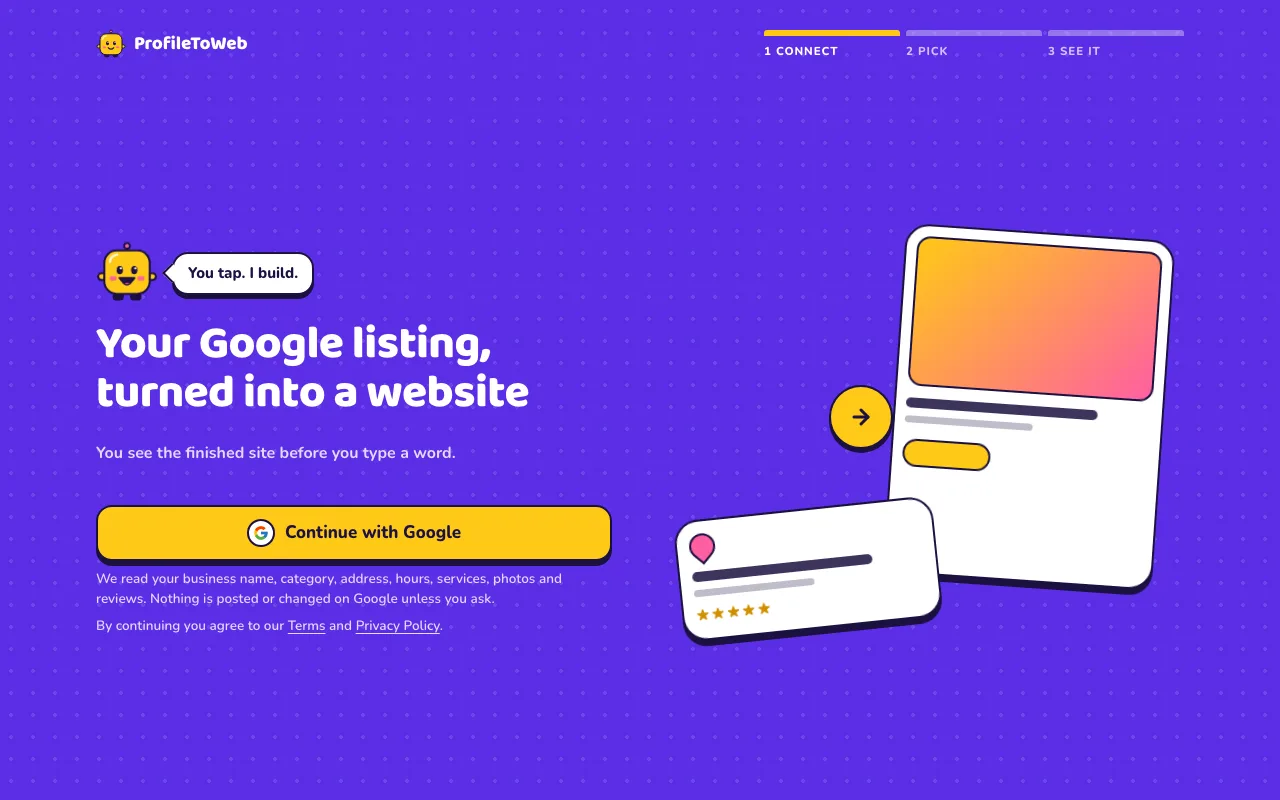
ProfileToWeb reads your business name, category, address, hours, services, photos and reviews. Nothing is posted or changed on Google unless you ask.
Step 3. Pick your business
If your Google account manages more than one business, choose the one this website is for.
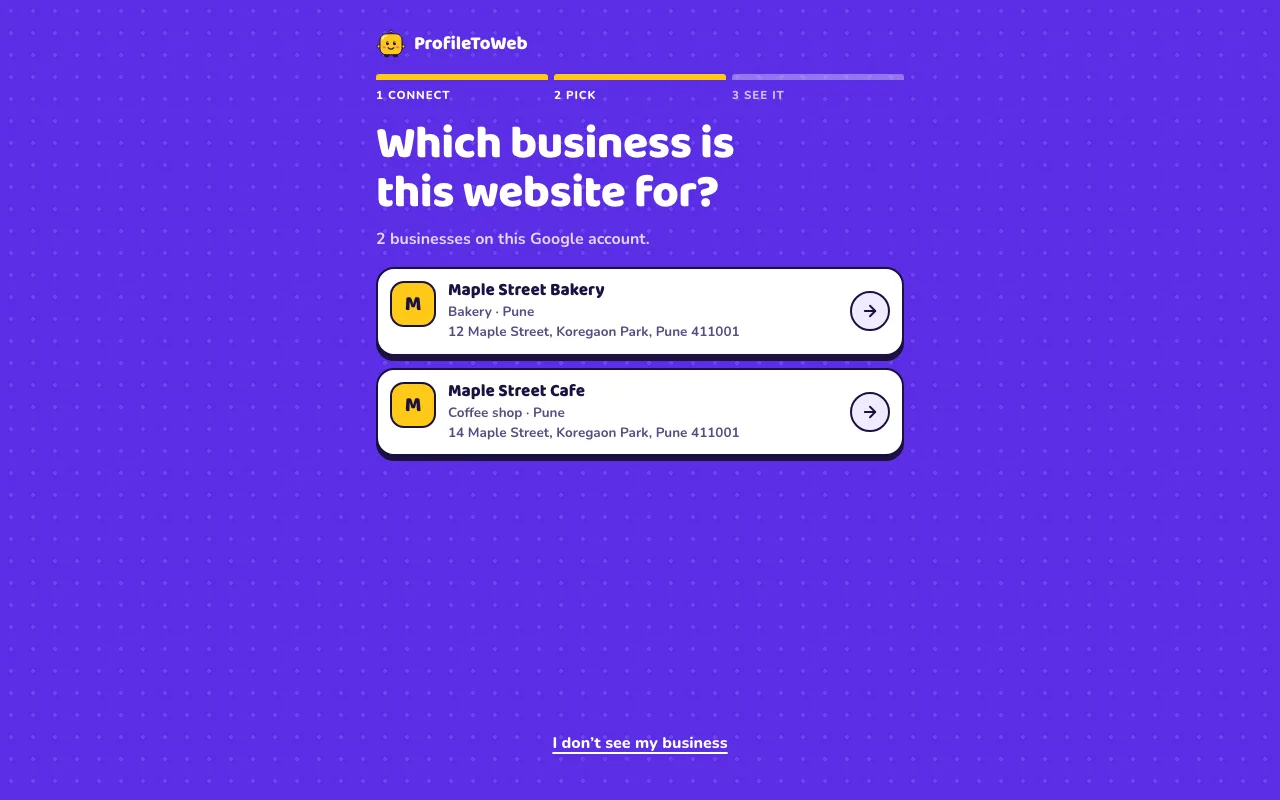
If yours isn't listed, choose I don't see my business and try a different Google account.
Step 4. Check the details and choose your web address
Check that the name, category, address and phone number are right.
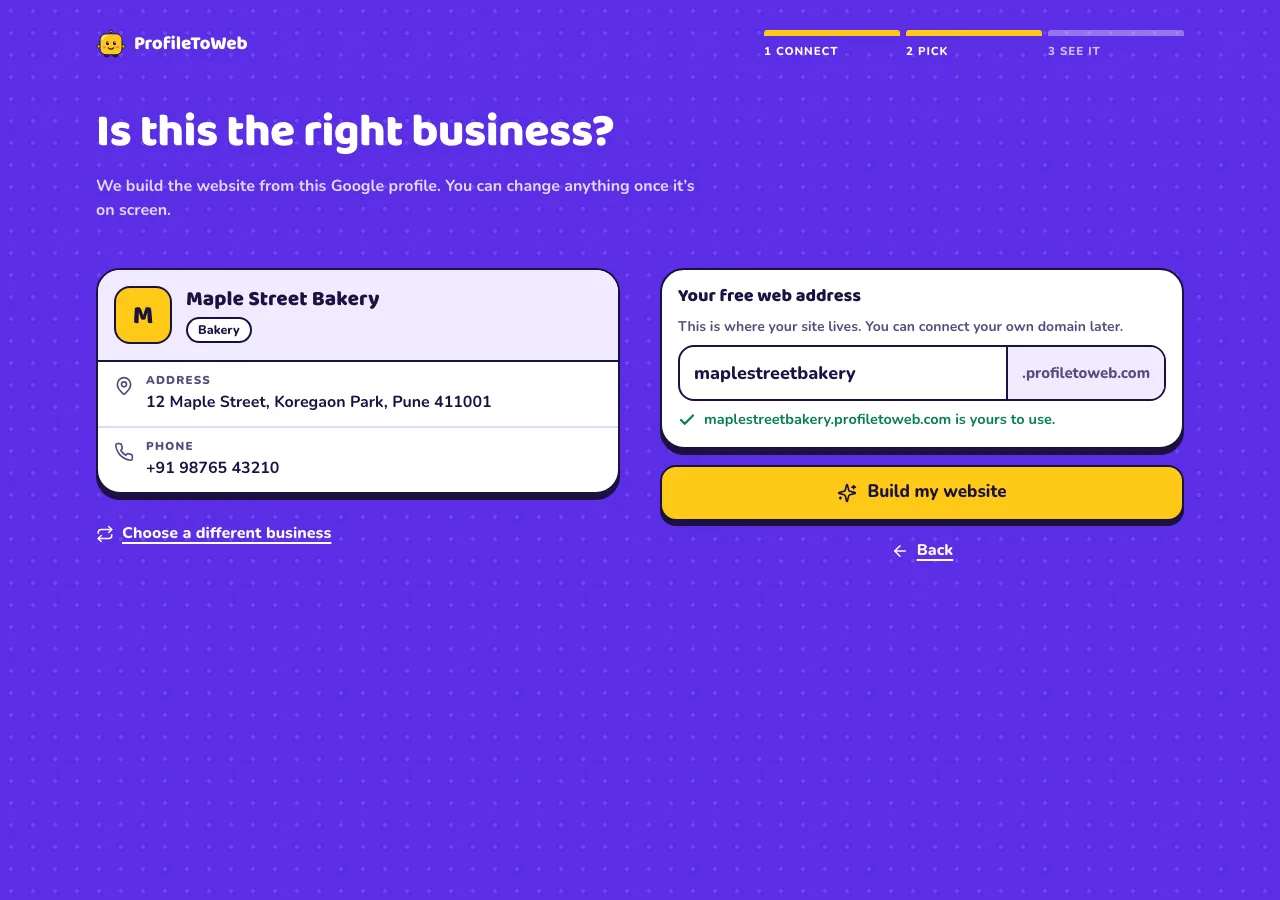
Then choose your free web address, for example yourbusiness.profiletoweb.com. A green tick means it is yours to use. You can connect your own domain later.
Choose Build my website. If the business is wrong, choose Choose a different business.
Part 2. Use the app
When the build finishes, you land in the app. On a computer the menu runs down the left. On a phone, the main sections run along the bottom, and everything else is under Menu.
Step 5. Home: see your website and finish your steps
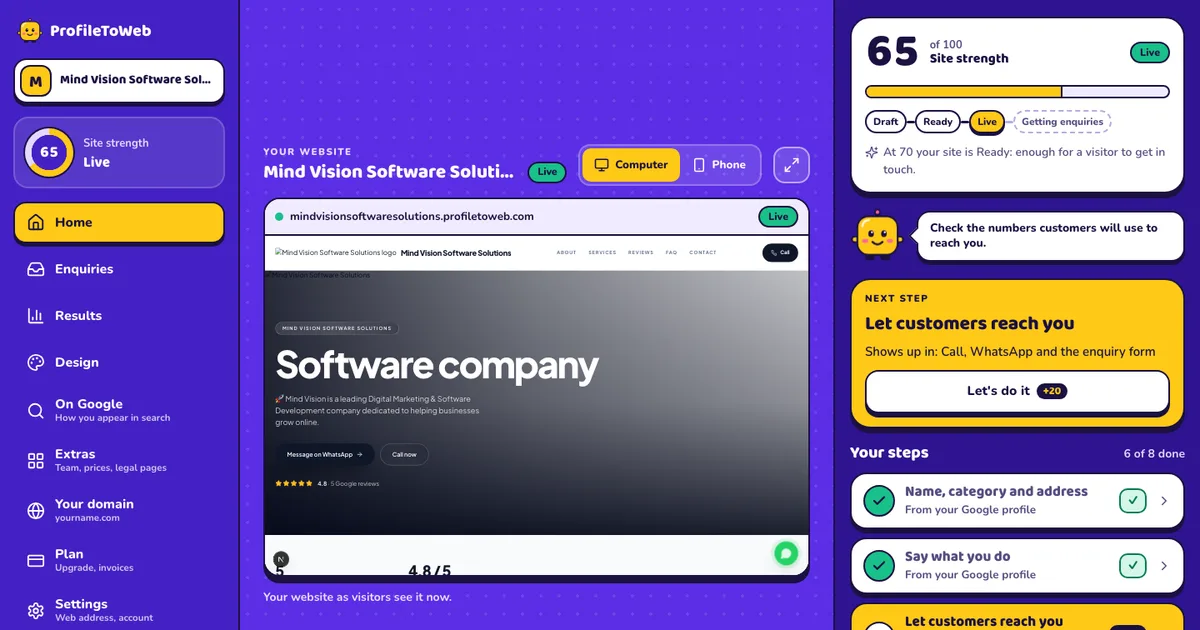
Home shows your website in the middle, already filled in from your Google profile. Use Computer and Phone above it to see how visitors will see it.
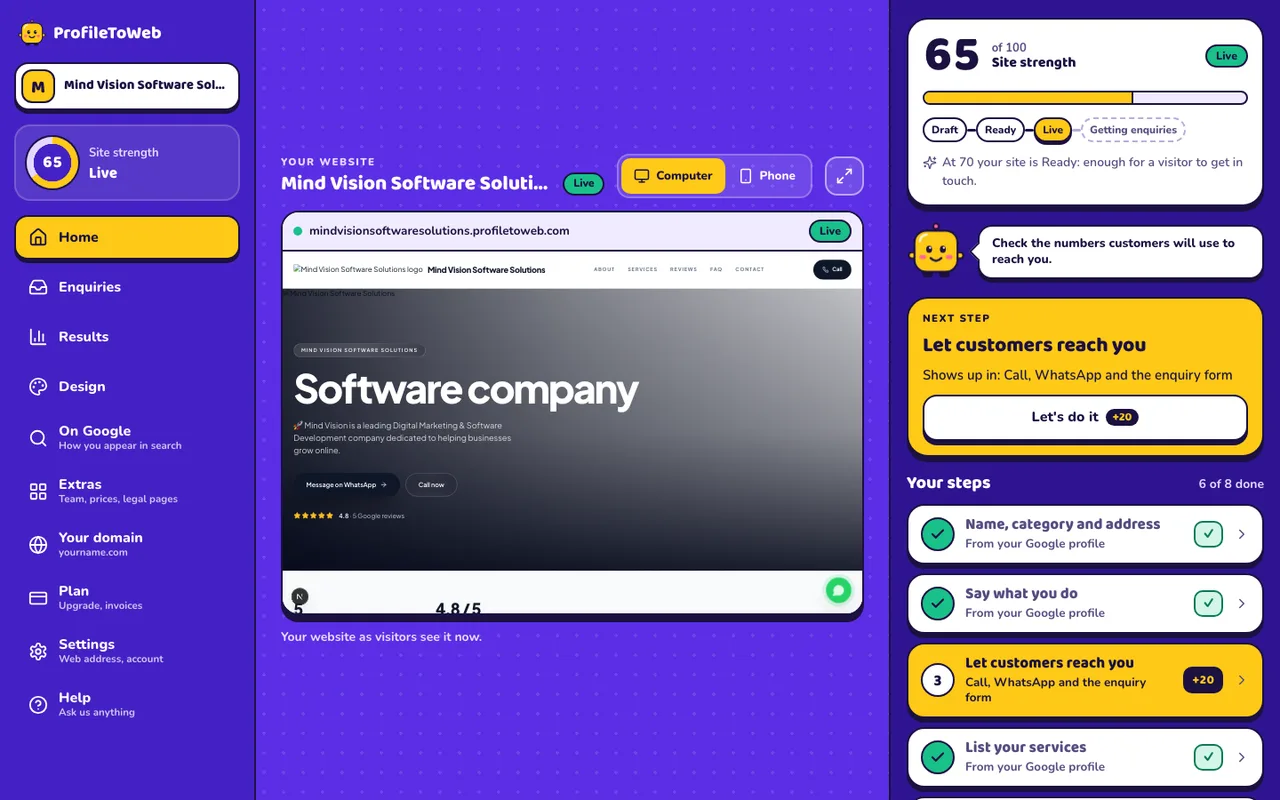
On the right:
- Site strength is a score out of 100 for how complete your site is. It moves from Draft to Ready to Live to Getting enquiries.
- Next step is the one job to do now. Choose Let's do it, check the details, and save.
- Your steps lists every job: your name and address, what you do, your services, how customers reach you, and more. Finished steps show a tick.
Check your phone and WhatsApp numbers. These are the numbers customers will use to reach you.
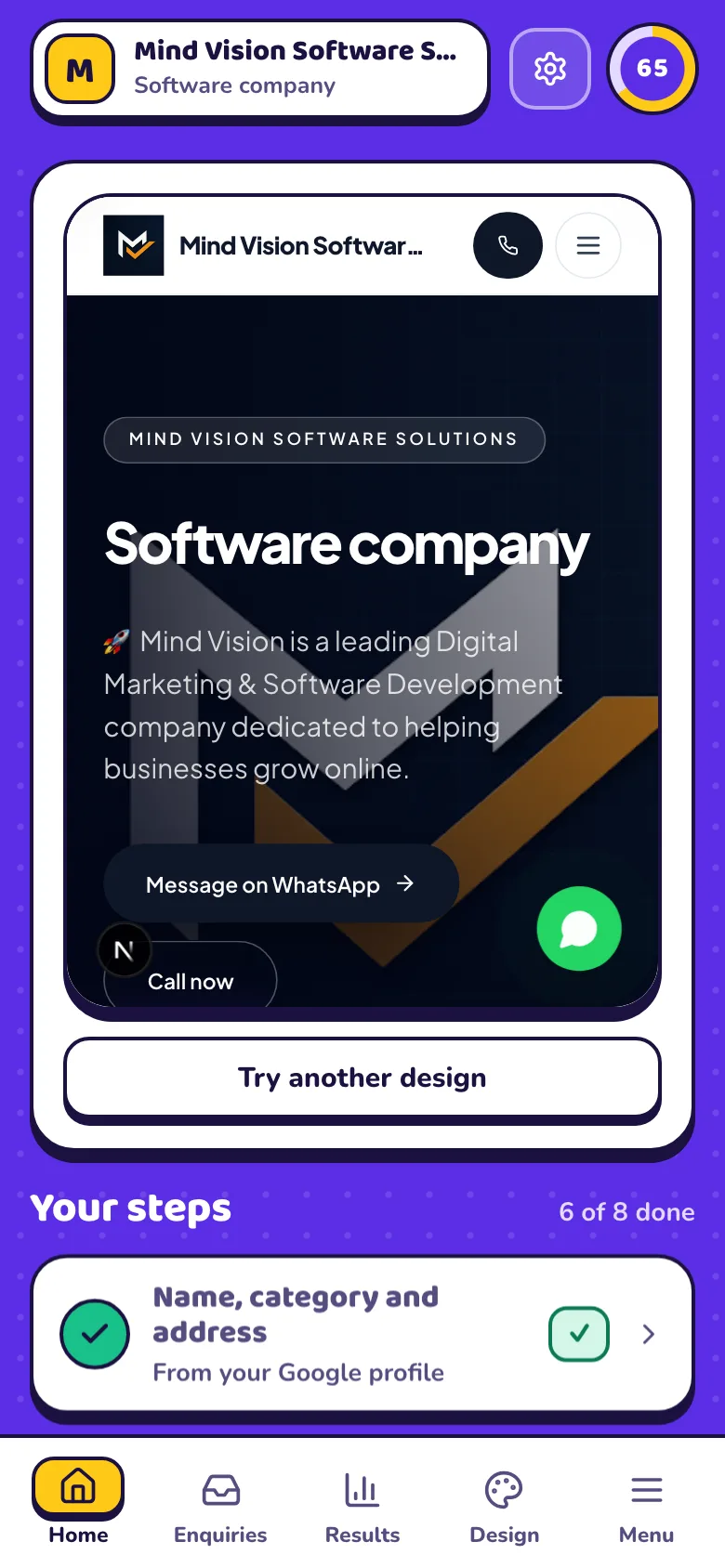
On a phone the same screen is laid out in one column.
Step 6. Design: choose how your site looks
Choose Design. Try any design on your own site: nothing changes until you choose Use this design.
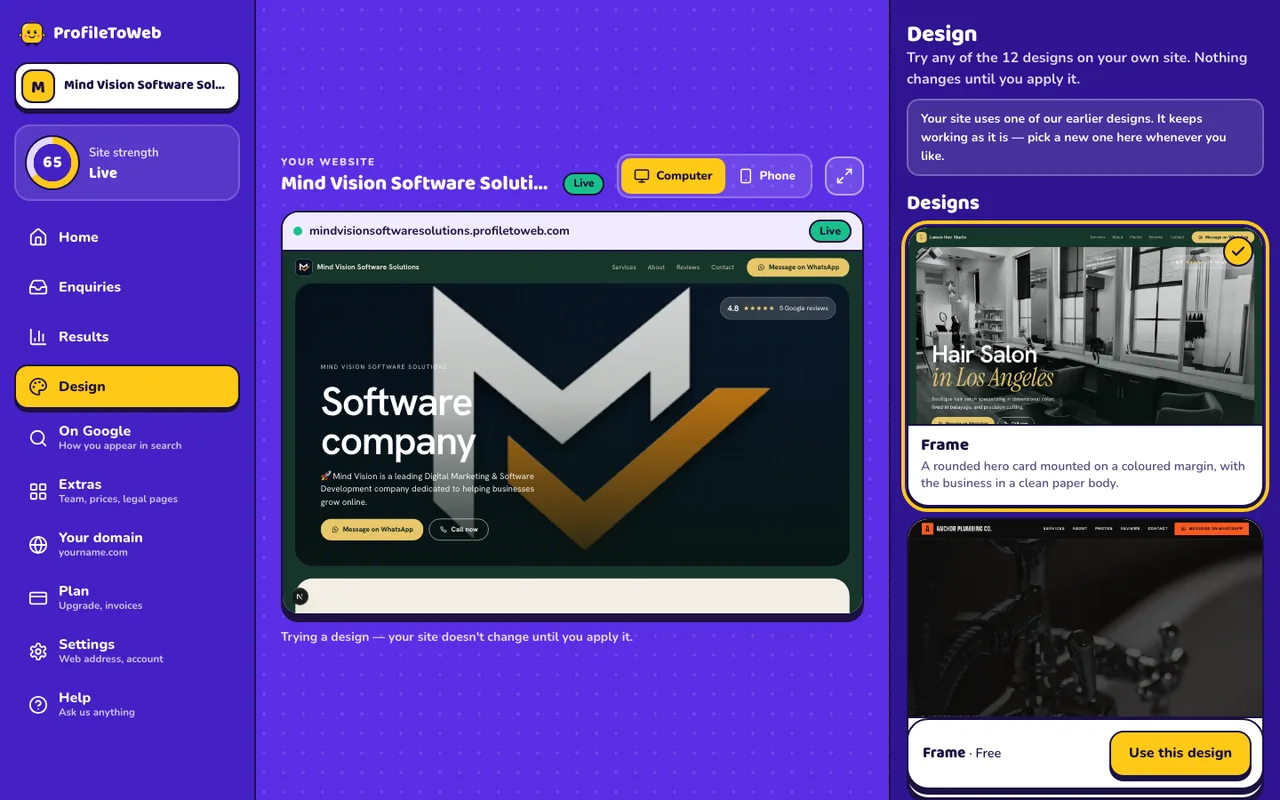
There are 12 designs. A free site can use some of them. Starter unlocks more, and Pro unlocks all 12.
Step 7. Enquiries: read messages from your website
When someone sends a message from the enquiry form on your site, it appears under Enquiries and is emailed to you.
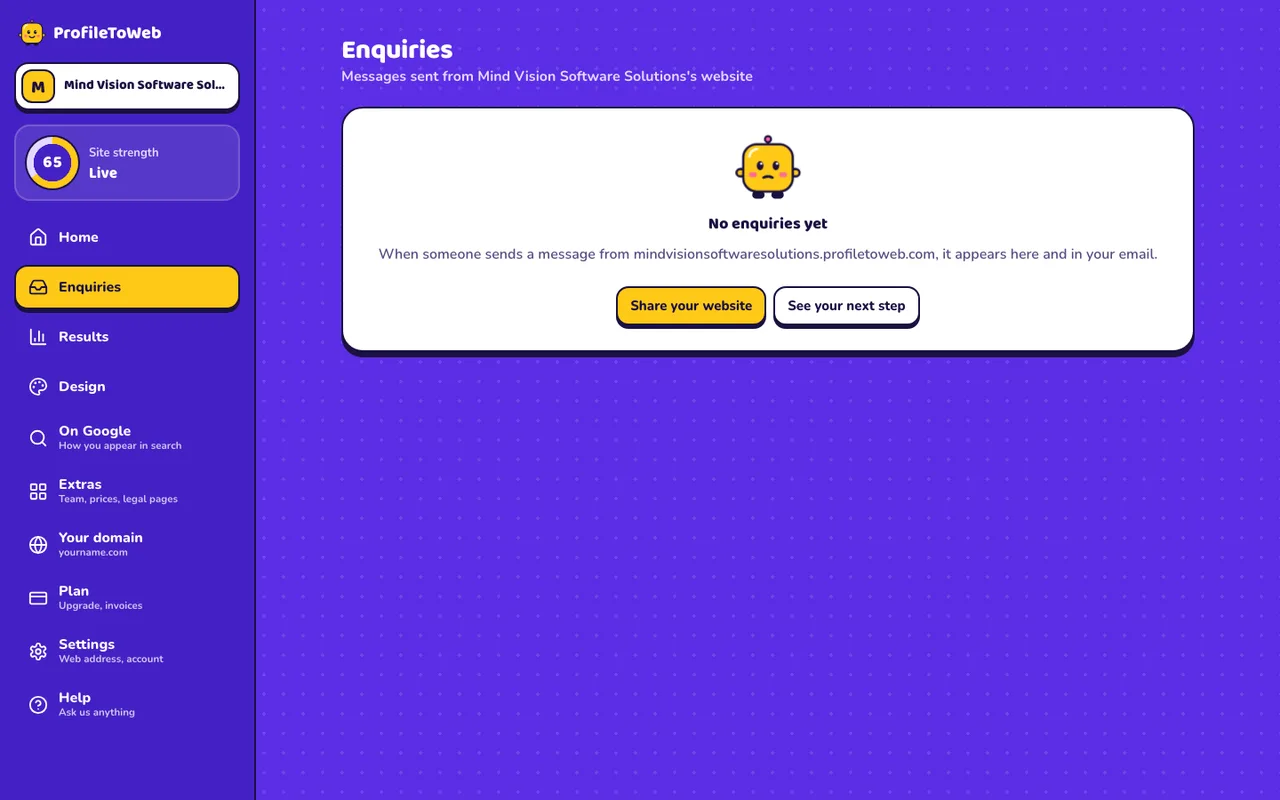
Until the first one arrives, use Share your website to send your address to customers.
Step 8. Results: see how your site is doing
Results shows the last 30 days compared with the 30 before: how many people reached you, how many visited, and how many tapped Call, WhatsApp or Directions. It also shows where visitors came from, such as Google or social media.
Results comes with Starter and Pro. On a free site, Results shows how many people sent an enquiry and a button to see Starter.
Step 9. On Google: see how you appear in search
On Google shows a preview of how your site appears in a Google search result, and a checklist of what Google gets from your site.
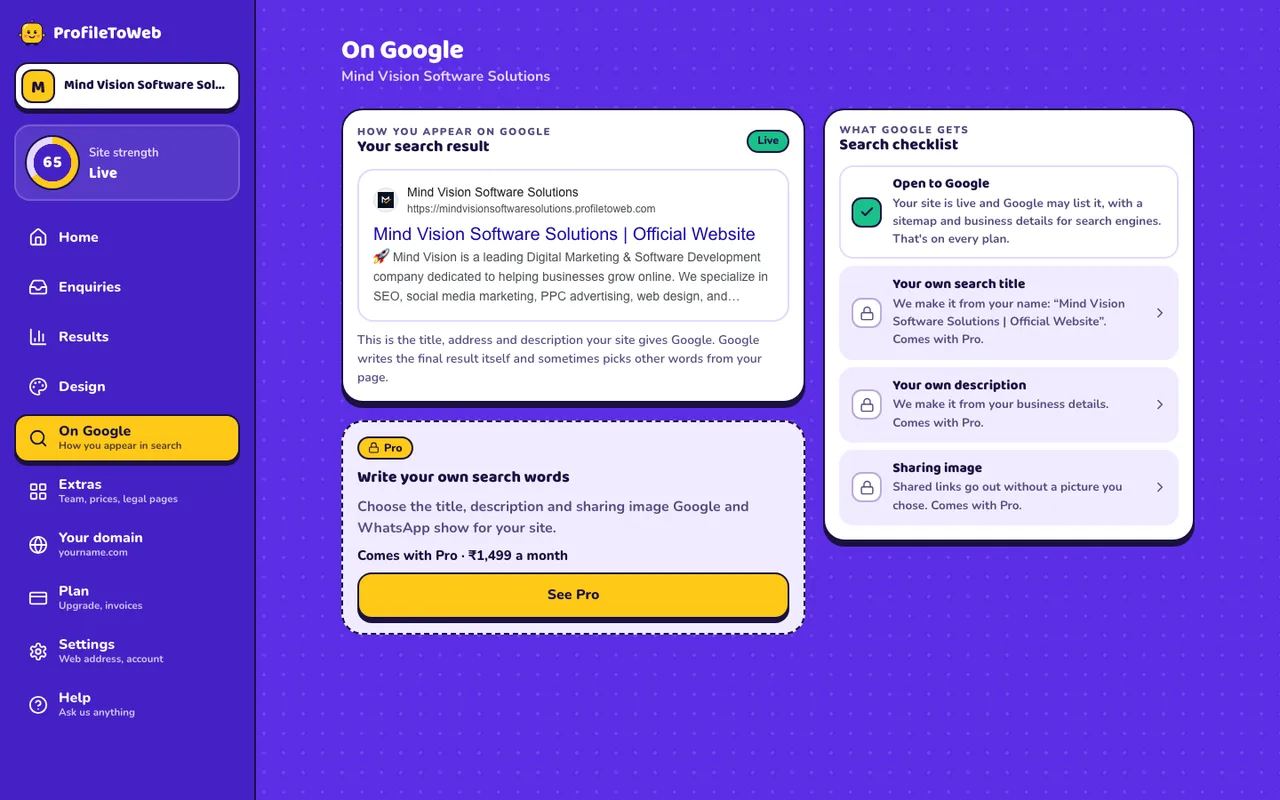
Every site is open to Google on every plan. On Pro you can also write your own search title, description and sharing image.
Step 10. Extras: team, prices, links and more
Extras is where everything else you can change lives.
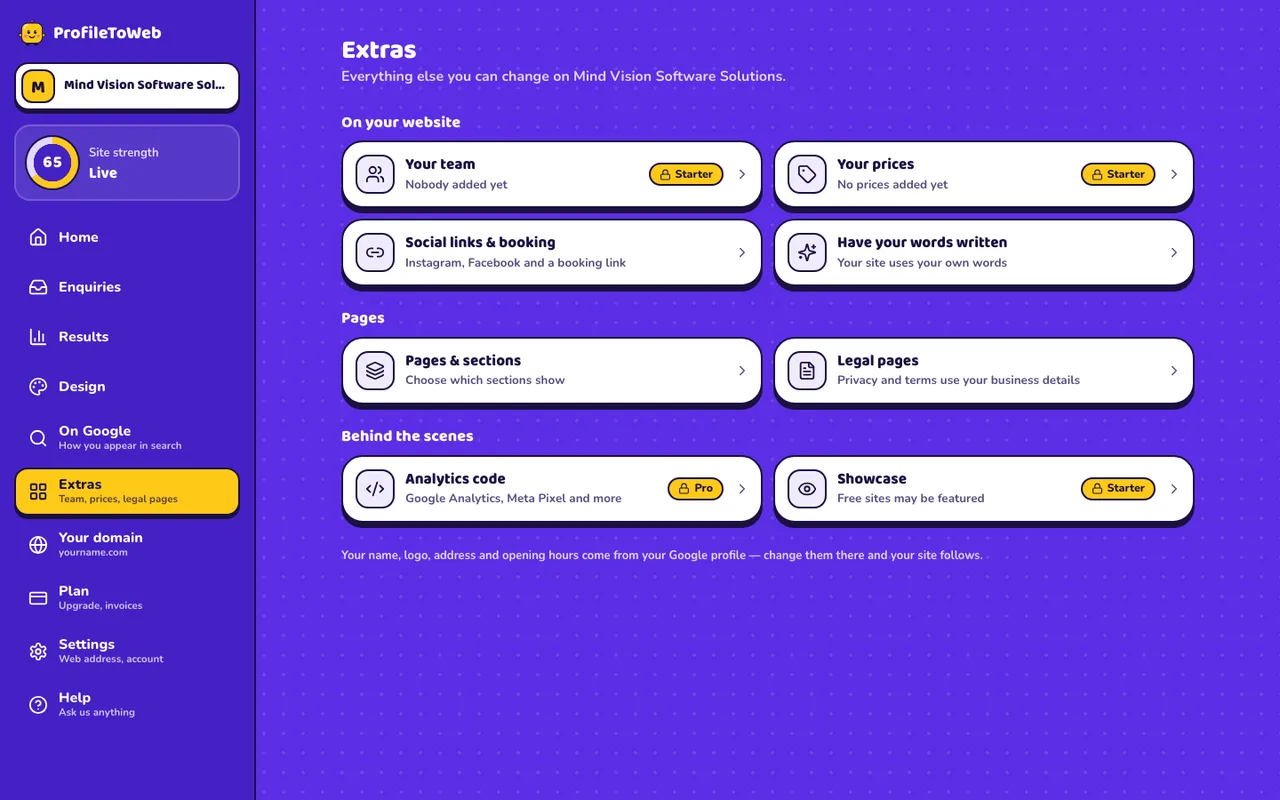
- Your team and Your prices: add them and they show on your site (Starter and Pro).
- Social links & booking: add Instagram, Facebook and a booking link.
- Have your words written: use your own words on your site.
- Pages & sections: choose which sections show.
- Legal pages: privacy and terms pages that use your business details.
- Analytics code: add Google Analytics or Meta Pixel (Pro).
- Showcase: free sites may be featured in our showcase.
Your name, logo, address and opening hours come from your Google profile. To change them, change them on Google and your site follows.
Step 11. Your domain: use your own web address
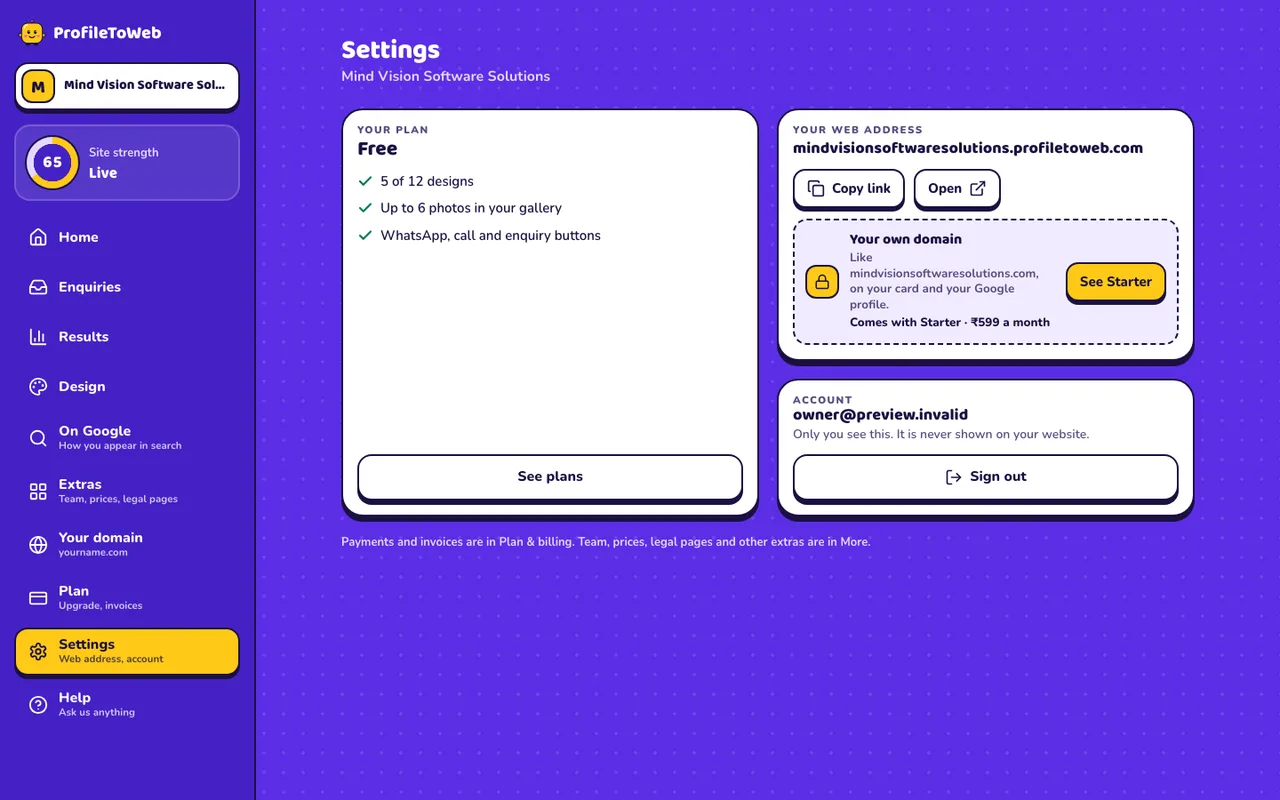
Your free address always works. With Starter you can also use your own domain, like yourname.com.
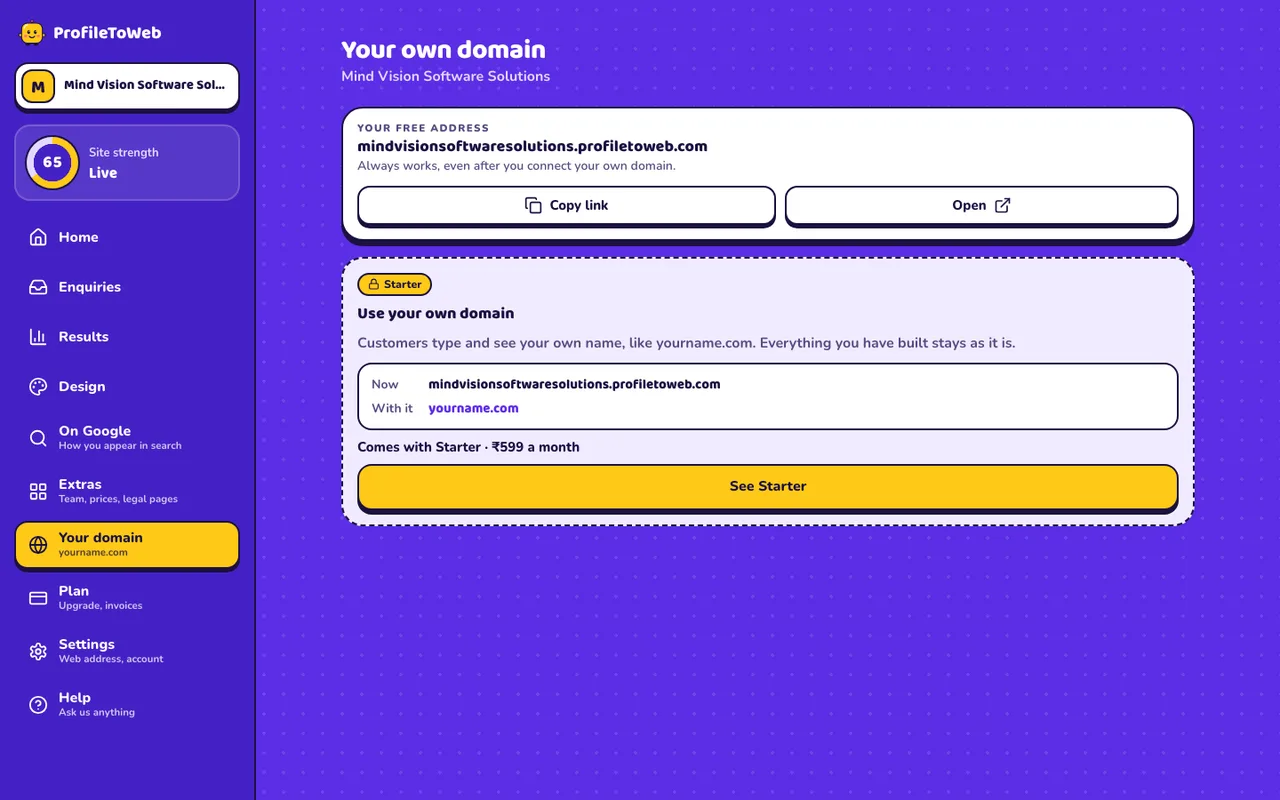
Use Copy link to copy your address and Open to see your live site.
Step 12. Plan: upgrade or manage billing
Plan shows what you have now and what each plan adds.
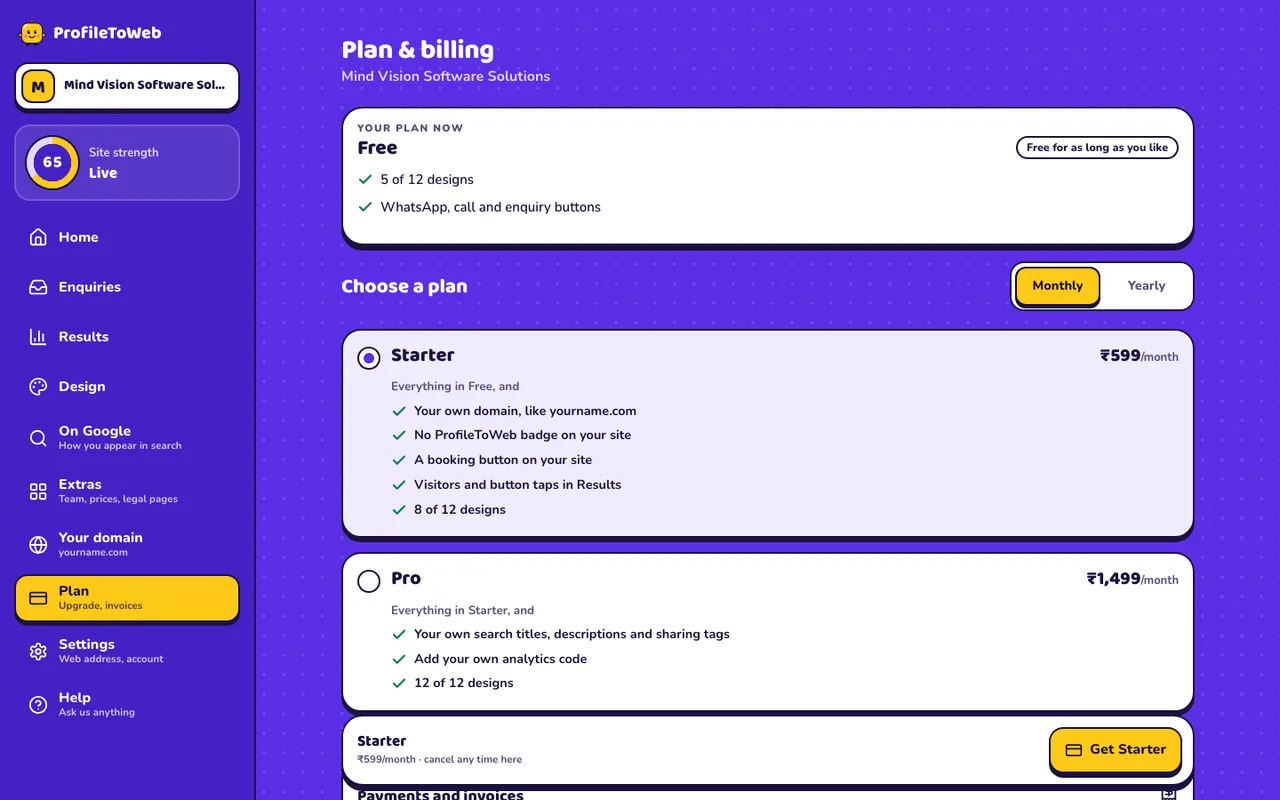
- Free: 5 of 12 designs, with WhatsApp, call and enquiry buttons. Free for as long as you like.
- Starter: your own domain, no ProfileToWeb badge, a booking button, visitors and taps in Results, and 8 of 12 designs.
- Pro: everything in Starter, plus your own search titles, descriptions and sharing tags, your own analytics code, and all 12 designs.
Choose Monthly or Yearly, then the plan. Invoices and payments are on the same screen.
Step 13. Settings: your address and account
Settings shows your plan, your web address and the account you signed in with. This is also where you sign out.
Step 14. Help: ask us anything
Help has guides, a quick tour of the Home screen, common questions, and a form to write to us.
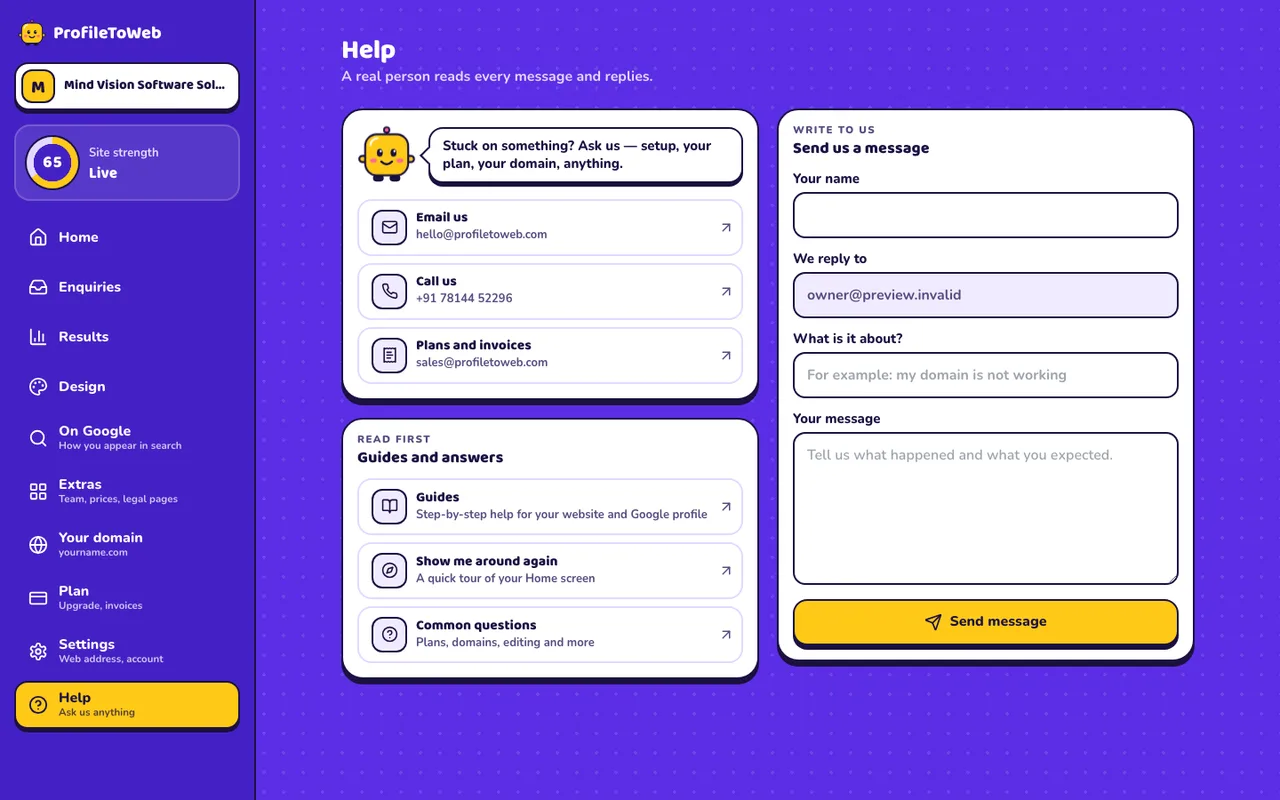
Choose Show me around again any time to replay the tour.
Step 15. Share your website
Your website is live at your free address. Add it to your Google Business Profile, your social pages, your business cards and your messages, so customers find it.
Questions people ask
Do I have to pay? No. A free website on a profiletoweb.com address stays free. Your own domain, more designs and seeing who visits come with paid plans.
Does it change my Google Business Profile? No. Nothing is posted or changed on Google unless you ask.
Can I change the words? Yes. Use the steps on Home to edit what you do, your services and your contact details.
What if my profile is missing something? The site uses only what is on your profile and what you add. Anything missing stays empty until you fill it in, rather than being made up.
Where do I get help? Choose Help in the menu and write to us. We reply by email.